Client detail
What this is
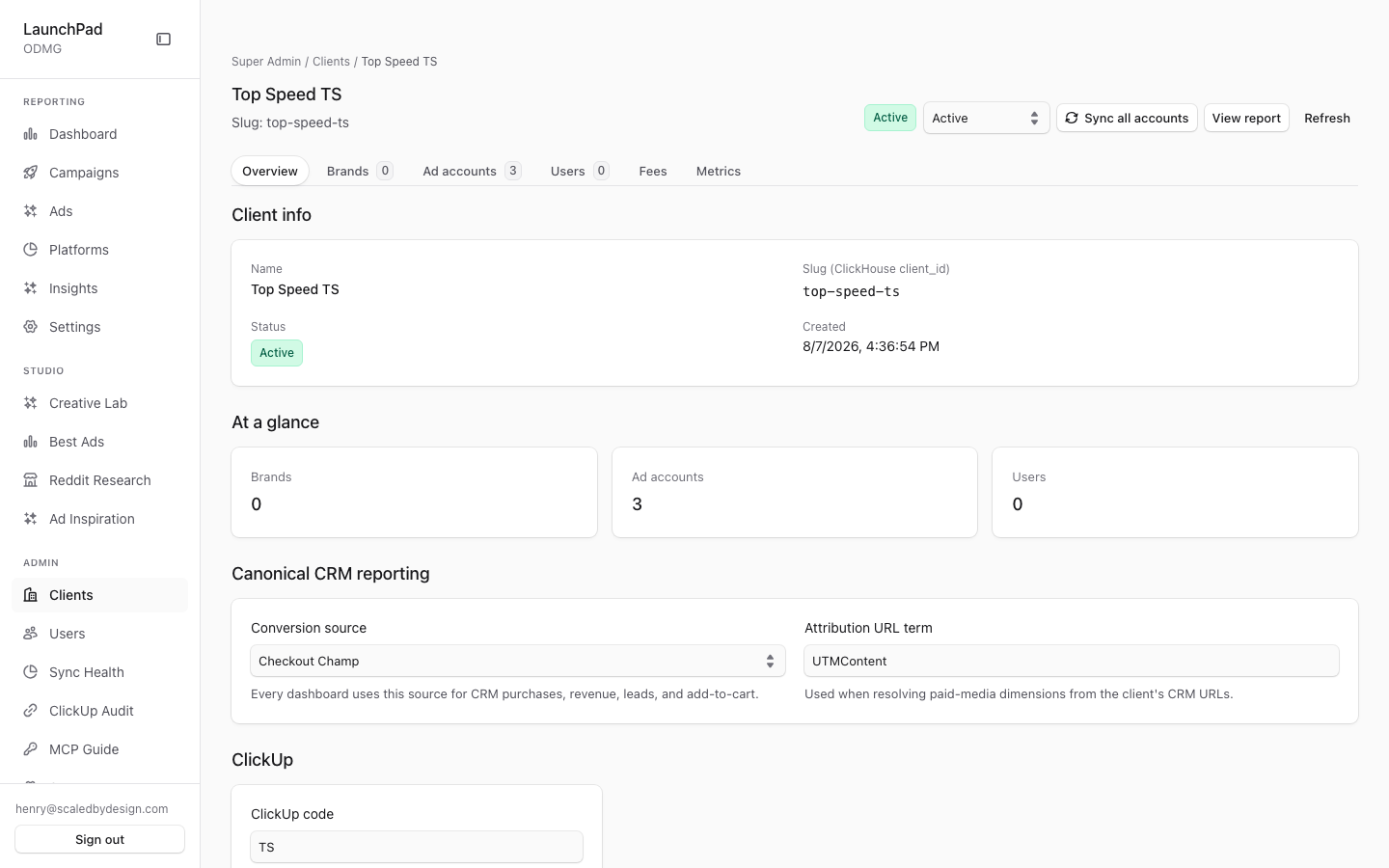
This is the management screen for one client. Use it to review and update the client’s profile and status, then move between Brands, Ad accounts, Users, Fees, Targets, and Metrics. Each section keeps the client’s setup in one place.
Common questions
Where do I add a client user?
Open the Users tab for that client. You can send an invitation or set a password directly; this is where client-specific users are created.
What client statuses can I set?
You can set the client to Active, Inactive, or Archived. Inactive is stored as paused.
How do fees work here?
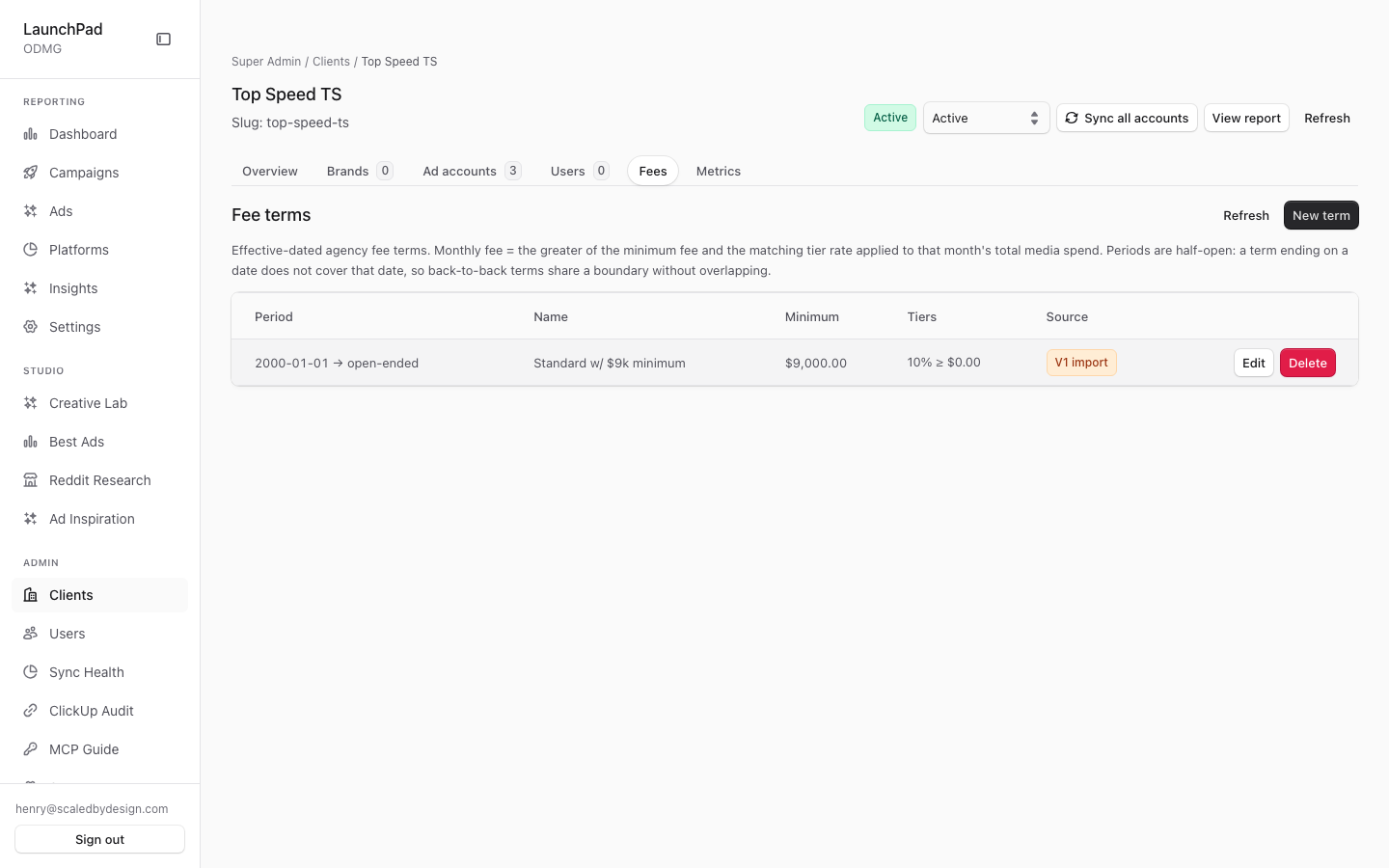
The Fees tab keeps a timeline of fee terms by effective date. A new open-ended term can close the previous open-ended term at the new start date.
Can this client use its own metric thresholds?
Yes. The Metrics tab lets you set client-level threshold overrides on top of the platform-wide definitions.
What is on the Targets tab?
Per-product CPA and ROAS targets (a blank field inherits the client-level target for that field only) and the rules that read codes out of this client's ad names for the Name Element breakdowns, with a preview against sample ad names before you save.
Which per-client switches are on Overview?
- Conversion source, attribution URL term, gross margin, and ClickUp code — how the client's orders and gross-profit metrics are read.
- AI features — whether the client uses the system-wide AI keys.
- Super Admin only, all off by default: campaign and ad set on/off switches, allowed daily budget edits from the report, count orders with no ad account, and show or hide CRM New Leads. See Status, switches, and budgets.
- Spend cap — the daily spend cap for Spend Guards is on each account in the Ad accounts tab.
Where do I manage brands and ad accounts?
Use the Brands and Ad accounts tabs on this client screen. Connecting accounts, signing off on their data, and excluding accounts you don't manage are covered in Managing a client's ad accounts.
Can I link straight to a specific tab?
Yes. Each tab keeps its name in the address, so you can share a link that opens directly to Brands, Ad accounts, Users, Fees, Targets, or Metrics.
How to use it
- Open the client from the Clients list.
- Use Overview to check the name, identifier, conversion source, and status.
- Choose the tab for the work you need: Brands, Ad accounts, Users, Fees, Targets, or Metrics.
- Save each change in its section before moving to another task.
Screenshot
For developers — routes, guards, and internals
- Route:
/admin/clients/[slug](captured:/admin/clients/top-speed-ts) - Guard: admin-tier (
isAdminTier) viasrc/app/admin/layout.tsx; every backing/api/admin/*route re-checks server-side.
The client-onboarding hub — the single-client management surface with the highest operational value. Capture (top-speed-ts): slug, Active status, created 8/7/2026, 3 ad accounts, 0 users, 0 brands, conversion source "Checkout Champ"; Fees tab currently has no terms.
Features
- Deep-linkable
?tab=tabs.ClientDetailShellstores the active section in the?tab=query so any page can link straight into a section. The code defines seven tabs: Overview, Brands, Ad accounts, Users, Fees, Targets, Metrics (SECTIONSarray). Note: the page manifest lists nine tabs (adding Connectors/Funnels/Products), but those three are not tabs here —FunnelsSection/ProductsSectionrender inside/marketing/settings(SettingsView.tsx), andConnectorCardrenders inside the Ad accounts tab. Cross-client roles manage a client's connectors/funnels/products via/marketing/settings?client=<slug>, which shares these sameclient-sections/*components. - Overview tab. Client profile (name, slug, conversion source) plus a
status selector: Active / Inactive (stored as
paused) / Archived, with breadcrumbs back to Super Admin → Clients. - Brands tab.
BrandsSection— per-client brand CRUD against/api/admin/brands?clientId=.... This replaced the retired standalone/admin/brandspage (which now redirects to/admin/clients). - Ad accounts tab.
AccountsSection— platform account bindings plus connector credential management (ConnectorCard). Replaces the retired/admin/ad-accountspage. - Users tab — where client_users are created.
UsersSectioncreates users scoped to this client viaPOST /api/admin/users, in one of two modes:invite(returns aninvite_urlfor the/signup?token=flow) orpassword(admin sets a min-8-char password directly, user can log in immediately). This is the exception to "/admin/users manages users": client_users are created HERE, not on the cross-tenant users page. - Fees tab.
FeesSection(W5a) — an effective-dated timeline editor overclient_fee_termsrows via/api/admin/clients/[id]/fee-terms. Fee model (migration 044,lib/marketing/fees.ts):monthly_fee = max(minimum_fee, tier_rate(month_spend) * month_spend)— i.e. the greater of the minimum fee and the highest applicable tier rate on that month's media spend. Rates are stored as fractions (0.15) but displayed/edited as percent (15); money is dollars. Creating a new open-ended term offers to supersede (close) the previous open-ended one at the new start date. - Metrics tab.
MetricsSection— client-level (L2) metric threshold overrides on top of the global (L1) definitions managed in/admin/settings. - Shared sections. All tab bodies live in
src/components/admin/client-sections/*and are shared with/marketing/settings, so per-client configuration has one implementation.
Key files
| Kind | Path |
|---|---|
| Page | src/app/admin/clients/[slug]/page.tsx |
| Shell (tabs) | src/components/admin/ClientDetailShell.tsx |
| Sections | src/components/admin/client-sections/{OverviewSection,BrandsSection,AccountsSection,UsersSection,FeesSection,MetricsSection}.tsx |
| Fee model | src/lib/marketing/fees.ts (migration 044) |
| API | /api/admin/clients/[id], /api/admin/clients/[id]/fee-terms, /api/admin/clients/[id]/daily-aov, /api/admin/brands, /api/admin/users (client-user create) |