Conditional formatting
What this is
Conditional formatting colours cells in the report so the numbers that need attention find you, instead of you hunting for them. You write rules like "ROAS below 1 → red" or "spend higher than last period → green", and every row that matches is shaded.
Open it with the Conditional formatting button above the table. Rules apply to whichever view you are in — Path, Drill-In, or Tabs — and at every level you drill to.
Two kinds of rule
This is the distinction worth understanding, because it decides what a rule can answer.
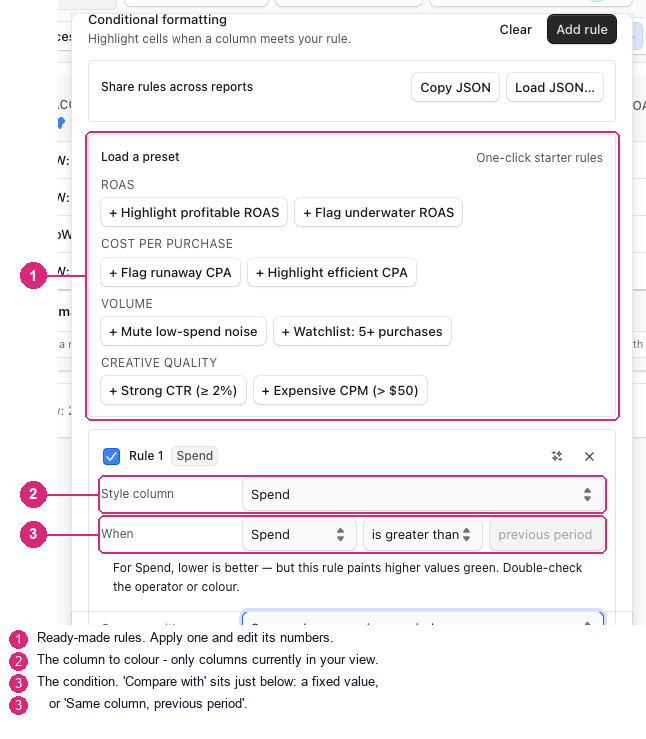
Fixed value. Compares a cell against a number you type. "CPA above $150 → red." The number never changes, so the rule means the same thing in every date range.
Same column, previous period. Compares each cell against its own value in the previous equal-length period. If you are looking at the last 30 days, the baseline is the 30 days before that. "Spend lower than the previous period → red" is this kind of rule.
Choose between them in the Compare with control when you add a rule.
What a rule looks like once it applies
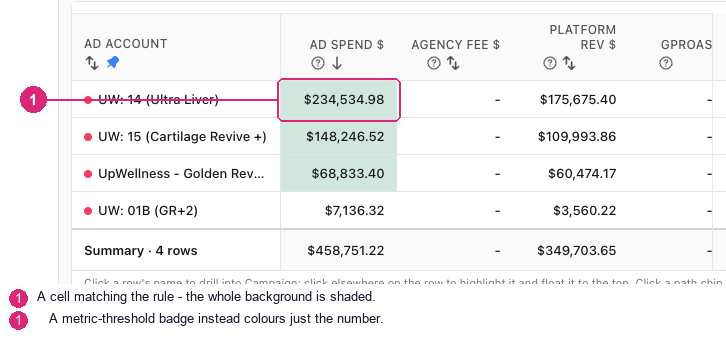
A matching cell has its whole background shaded. Here, "Spend is greater than $10,000" paints three of the four accounts green and leaves the fourth alone.
Common questions
My previous-period rule isn't colouring anything
First check the banner at the top of the rules editor. A previous-period rule needs a baseline, and when one cannot be loaded the editor says so directly rather than leaving you guessing — it will tell you it is still loading, or that this view has no previous-period baseline at all.
If it reports no baseline, the usual cause is a date range with nothing before it to compare against. Try a different range.
A rule that cannot resolve a baseline paints nothing. It never falls back to colouring rows as if they had passed — a wrong colour is worse than no colour when you are deciding where to spend.
I can't find the column I want — there's "Spend" but no "Ad Spend"
Use the column name exactly as it appears in the table header. The rule editor lists the columns currently in your view, so if a column is hidden it will not be in the list. Add it back with Customize first.
Do my rules follow me between views and drill levels?
Yes. A rule written on the client list still applies when you drill into accounts, campaigns, ad sets and ads, and it applies in Path, Drill-In and Tabs. It matches on the column, not on the row.
Are the rules shared with my team?
No. Conditional formatting is saved in your own browser, so it is personal to you and to that browser. Clearing site data clears the rules. Colleagues do not see your rules, and you will not see theirs.
Why is a cell coloured when no rule of mine matches it?
Two different colouring systems can touch the same cell:
- Your conditional formatting rules shade the whole cell background.
- Metric thresholds (set in System settings, or per client on the Metrics tab) colour a small badge around the number itself.
So a cell with a coloured badge but a plain background is being coloured by a metric threshold, not by one of your rules.
Can I start from something rather than a blank rule?
Yes. The editor offers ready-made rules grouped into ROAS, Cost per purchase, Volume and Creative quality — for example "Flag underwater ROAS", "Flag runaway CPA", "Mute low-spend noise" and "Strong CTR (≥ 2%)". Apply one and edit its numbers.
How to use it
Colour a column against a fixed number
- Select Conditional formatting above the table.
- Add a rule and choose the column.
- Leave Compare with on the fixed-value option and type the number.
- Pick the condition (above / below) and the colour.
Colour a column against the previous period
- Add a rule and choose the column.
- Set Compare with to Same column, previous period.
- Pick the direction — higher or lower than last period — and the colour.
- Check the banner: if it reports no baseline, the rule will not paint and the date range is usually why.
For developers — internals
- Editor:
src/components/marketing/ConditionalFormattingEditor.tsx - Cell resolution:
src/lib/marketing/table/conditionalFormattingCell.ts - Presets:
src/lib/marketing/conditionalFormattingPresets.ts(8 presets, 4 categories, versioned byCONDITIONAL_FORMATTING_PRESETS_VERSION) - Storage: browser
localStorage, keyswa:cf:v2:all. Not server-persisted and not shared between users.
Row identity is the hard part. A vs-previous rule has to find the same row in the baseline, which means a stable key per grain. Two defects here were fixed in Sept 2026 and are covered by tests:
- Client-grain keys are deliberately platform-free — a client node
aggregates all of its ad accounts, so including
platformin the key made the current and baseline rows fail to match. - Flat rows from
/api/marketing/hierarchycarry an explicitleveland no child arrays, so structural grain detection returned nothing and those rows had no identity at all. An explicit-levelbranch runs before structural detection; all five grains now produce byte-identical keys flat vs nested.
Baseline health is surfaced, not swallowed. An empty comparison store is
treated as a failure state ('failed'), not a healthy empty baseline — the
editor renders that distinction. Fail-closed: no baseline means no paint.
Two independent colouring systems write to the same cell. The rule sets
the <td> background; the metric-threshold badge colours an inner <span>.
When verifying visually, read computed styles rather than eyeballing a
screenshot — the two are easy to confuse.
colorForMetric guards non-finite values as its first line: NaN, Infinity
and -Infinity previously resolved to a colour.